This manual shows all options for Data import to MyPigeons (uploading pigeon arrivals data to our Database), basic principles for work with the Data, options for editing, erasing and electronic Data import from various ETS Brands (Tipes, TauRIS, Mega, etc...)
All data is being inserted to "temporary table". While inserting the data, we perform basic input check, pigeon listing check (if required), speed calculation etc...
Moving inserted data from temporary table to main database is just one click of a button. While moving the data, we re-calculate main ranking of pigeons and fanciers for the highest combination of fanciers (Club, Organisation, Combine, National...). Data is immediately available online after this step (on the fly Results)
If Race Locking is enabled by your Organisation, you can access the Data Import for particular Race within defined tim period. For example - Slovak federation requires locking Races after 21 days from liberation. After such period you need to request Unlock from defined Administrator to work with the Data
You can access Data Import only for Races that have been already started. Time of liberation has to be set, so Velocities of arrived Pigeons can be calculated correctly.
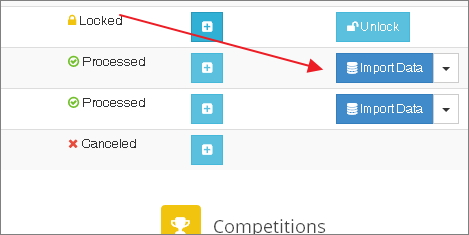
You can access data import page from main list of Races - as administrator you should see buttons on the right side (if not, please request required privileges for your account). Click "Import Data" button for Race of your choice
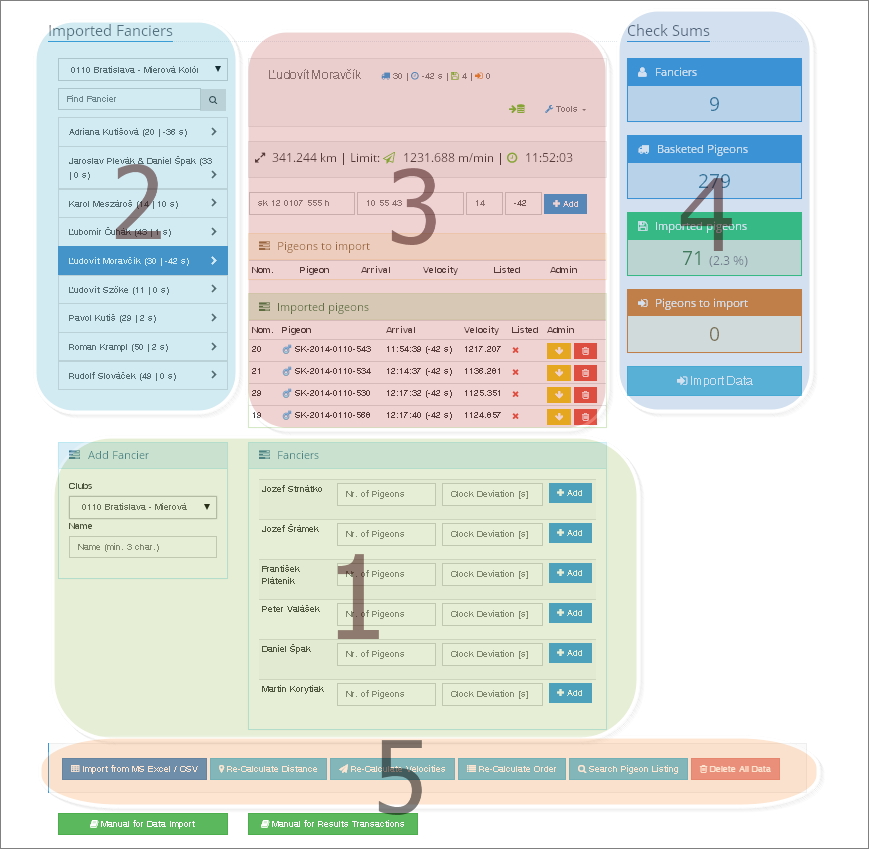
First you will input basic Data for participating Fanciers - number of pigeons they basketed for a Race and if needed, also Clock deviation against real time.
Inserted Fanciers will show up in the list above. You can click on the Fancier here to start working with his data.
After clicking on added fancier you can start adding arrived pigeons (panel in the middle). There are also tools that allow you to change basic data, pull back arrivals or delete them completely.
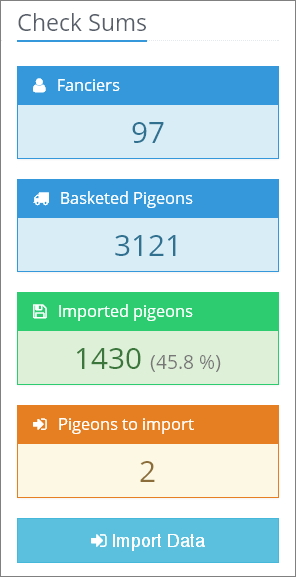
On the right side you can check sums of basketed pigeons for selected club or whole organisation. It is very helpful if you are working with larger number of pigeons / fanciers. There is also a button that allows you to import all uploaded data to main database and publish them online.
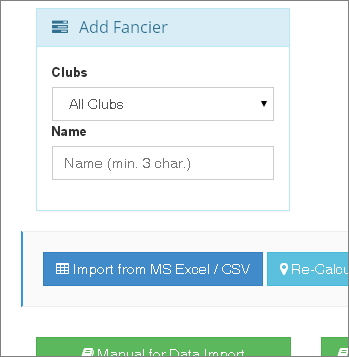
Down below there are some functional buttons that allow you to perform certain operations with whole Data pack. For data import you will need first button that will take you to uploading Excel sheet file (if you prefer this option). You will find detailed information for each button in guide for Results Calculation and administration. Go
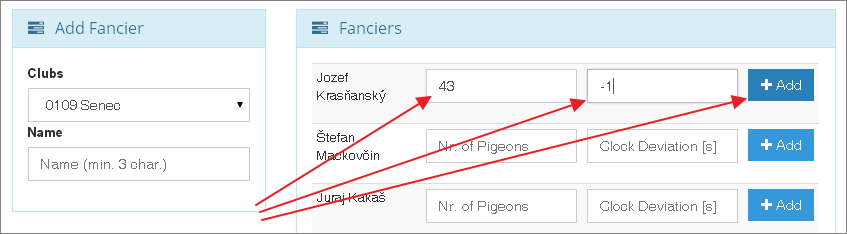
Adding a Fancier to a Race is very easy. You can select list of Fanciers by selecting a Club or type part of a name to find a specific Fancier.
After specifying search criteria you will get list of fanciers (that arre not listed for this race yet) with input fileds for number of basketed pigeons and clock deviations. Number of pigeons is compulsory value, clcok deviation can stay empty (as zero). Just click "Add" button to add fancier.
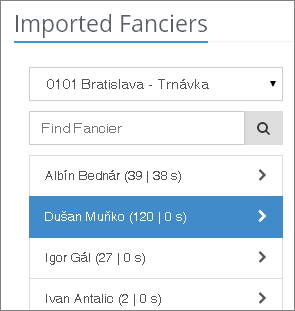
This panel allows you to select added fancier to start inserting his race data. It is placed in the top left side of the page. It has also its own filter to select fanciers by club or search for their name. After clicking on a fancier in list you will get his panel for adding race data and other tools.
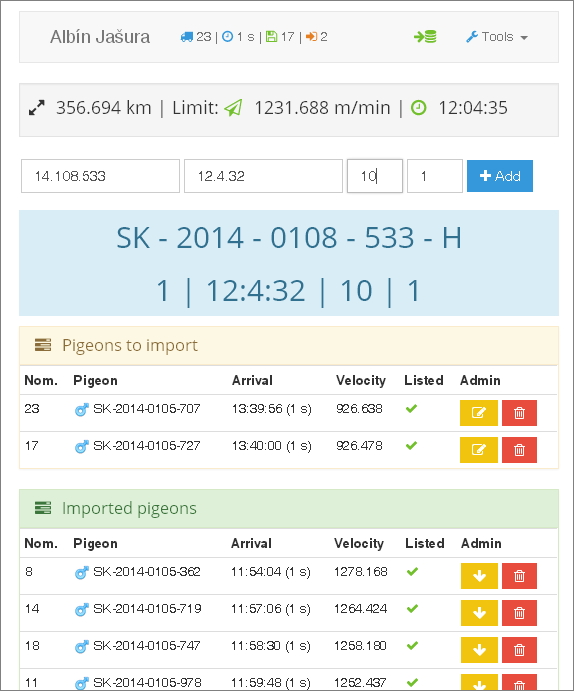
This panel shows in the middle part of the page after clicking on added fancier on the left. It shows basic information about Race data, imported arrivals, data in temporary table and set of tools to work with the data
Legend
number of basketed pigeons for this Race and Fancier
Clock deviation in seconds
Number of imported pigeon arrivals in main Database
Number of pigeon arrivals in temporary table (waiting for import to main database)
Shortcut for electronic import from ETS readout
Distance from Liberation point to Fancier's Loft
Speed of last succesful pigeon in the Database for this Race and Organisation (calculated for 20% of succesful pigeons)
Calculated time for last succesful pigeon for this Loft based on the last pigeon's speed in the Organisation
edit pigeon arrival data
pull back pigeon arrival (from main database to temporary table - for editing)
delete pigeon arrival
Optimize your work
You can use "+" key to move between the input fields (same as Tab key) and send the data with "Enter" key. It will save you time and allows you to input the data with only one hand on numeric keypad.
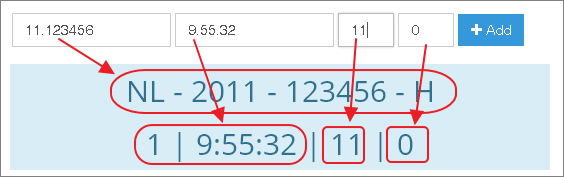
Unique number of racing pigeon's Ring. Very important information as every pigeon is stored in the database to keep his full performance history
Every organisation can have default country code so you don't have to type it for every pigeon. If you are typing pigeon number for NL organisation, you can type 14.12345678. We will automatically transform it to NL-2014-12345678
You can separate the ring data (year, organisation, ring number) with comma, period, whitespace or dash - so you can use only one hand on numeric keypad
Default sex is Cock. You can use any character to set sex as Hen. To type NL-2013-12345678 E, you can type 14,12345678,* or 14,12345678,e
For countries that put organisation with starting zero to ring numbers (like Germany) - starting zero will be added automatically. For DV-2013-03658-533 you can type dv,13,3658,533
Codes are not case sensitive. You can type "m" instead of "M" etc... We will automatically transform to uppercase for you
2 | Day and time of arrival
Day and time when pigeon was clocked by clock or ETS according to race documentation.
Default day od arrival is 1. If pigeon arrives on first day, you don't have to type it.
You can separate time values with comma, period, colon, or whitespace. For time 10:03:51 you can type 10,3,51
For Races that last longer than one day and pigeons that arrive after first day you have to type also a day value. You can type 2,10,50,56 for pigeon that arrive on second day, 10:50:56
3 | Nomination
Order in which the pigeon was basketed according to race documentation. It is important value for some competitions.
Nomination is a compulsory value as it is essential for evaluating certain competitions. If you do not want to use nomination in you organisation, please contact us.
4 | Clock deviation
If fancier uses more than one clock or ETS, you can input individual clock deviaton for every pigeon.
For every pigeon we automatically put in the field the default value that you typed in for fancier. You can change it for every pigeon or send it without changing
Arrivals that are saved with other than default fancier's clock deviation are shown in the results with their specific value to prevent manipulation of calculated velocities and maintain maximum transparency
If the clock is late against real time you should enter negative value in seconds (-5...). If the clock is going faster than real time you should enter positive value in seconds (31...)
Negative clock deviation decreases calculated pigeon speed, positive value has no effect on speed calculation - it is ignored
While typing the data, you will see it automatically transformed right below the input fields. You can easily check if the data is OK. There is also a quick check for duplicate pigeons for the Race so you cannot input a pigeon twice.
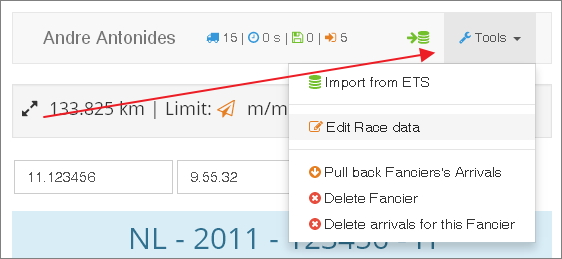
There is a set of tools that will easily allow you to manage fancier's data, edit the basic input, pull back all arrivals, or completely delete fancier and his data from race.
Legend
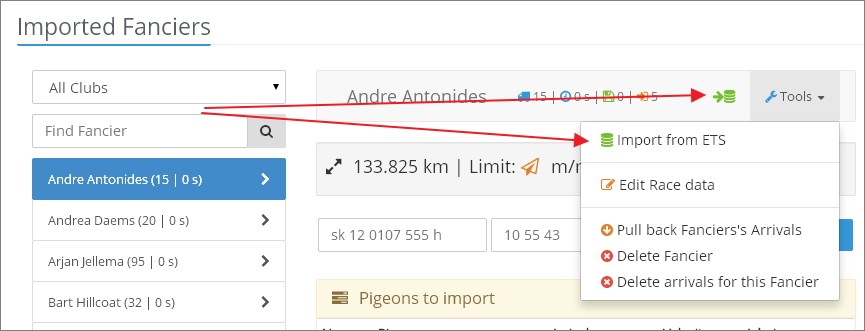
Shortcut for electronic import from ETS readout
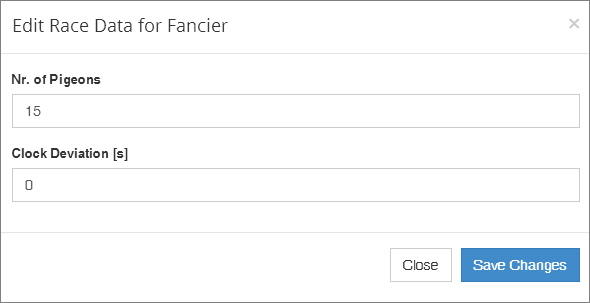
edit number of basketed pigeons and default clock deviation for Fancier and Race
pull back all race data (pigeon arrivals) from main database to temporary table for editing
Slet medlem - DELETE fancier AND ALL his DATA FROM this race
Slet stemplingstider for dette medlem - DELETE all race DATA FOR fancier FROM main DATABASE AND TEMPORARY TABLE
If a fancier uses more than one clock or ETS (or combination), he can have more than one clock deviation for clocked pigeons. You can set diferent clock deviation for every pigeon. However, when you add all the pigeon arrival data to database and then you try to change fancier's clock deviation or nr. of basketed pigeons, it will be changed for all the pigeons with the value set in the input field.
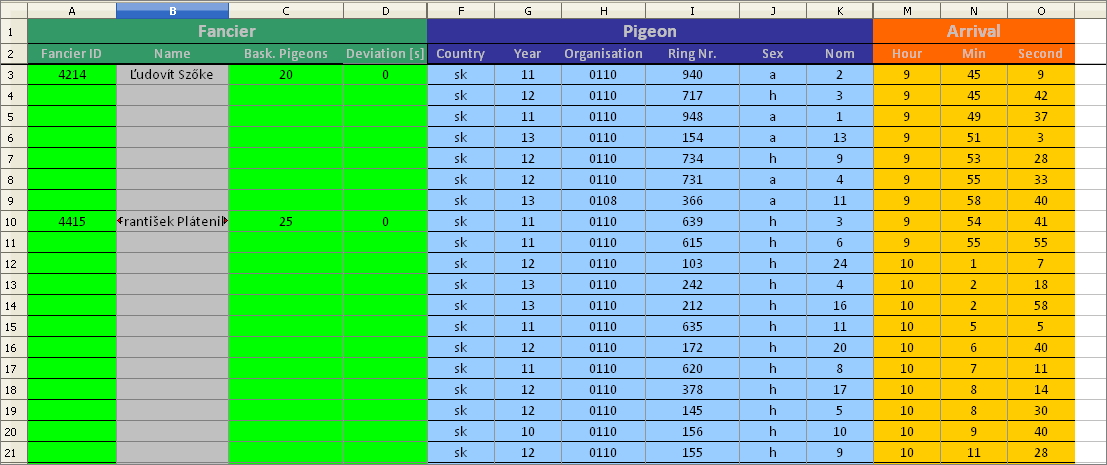
To use MS Excel to import race data, you need to use our preformatted xls sheet. We will send you a blank copy once you finished your work on your fancier database (all fanciers from your organisation need to be in our database with correct fancier data)
there is 1500 preformatted lines in xls sheet, but we always read data from first 3000 lines of every uploaded sheet
data can be imported from unlimited nr. of xls sheets. One set of data should be uploaded only once. Similar records will rewrite older values or will be ignored.
you can use all the shortcuts for ring numbers mentioned above (manual data input)
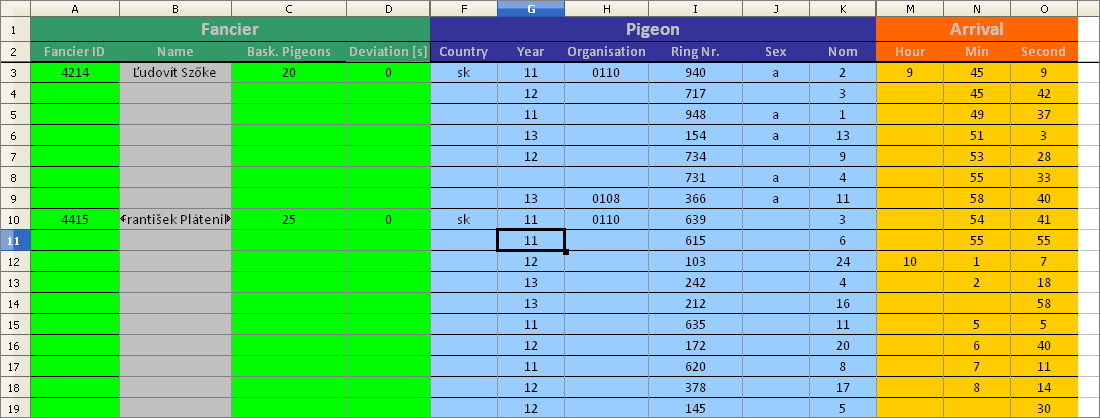
repeating values in subsequent lines do not need to be entered. If all the pigeons arrive at 10 hours, you can type 10 only for first pigeon to save some time. This applies to all data that can be repeated from line to line (if the cell is empty, we will use the value from cell above)
fancier ID, nr. of basketed pigeons and clock deviation do not need to be in every line. You can type them only for first pigeon. If fancier used more clocks and has more clock deviations, you should put the deviation to each line to make sure that the right one is used for every pigeon
column B (fancier's name) is filled automatically from second sheet (there is list of fanciers with their IDs from our database). This is just to check if you typed correct ID.
Always use blank xls sheet for new set of data. After you finish entering the data, save the sheet as a copy so you have the blank one for next time.
if you try to delete the data in xls sheet, please be careful with column B. There is formula to find fancier's name that won't work if you delete it.
cells in xls sheet is preformatted to work correctly with our scripts. If you try to paste data from another source or between the columns, please always paste only values, so cell formats stay unchanged.
if clock deviation for fancier is 0, please enter 0 value - do not leave the cell empty. Otherwise will be used value from cells above (in this case deviation from different fancier), which can be incorrect
After completing data input, save the file (as a copy) on your computer and upload it to our server. Link to page for Excel import is on the bottom of Data import page (blue button)
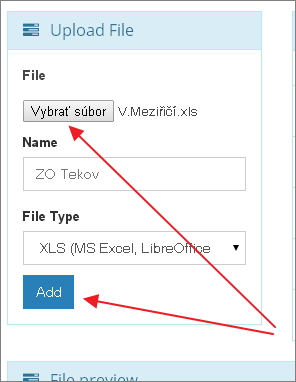
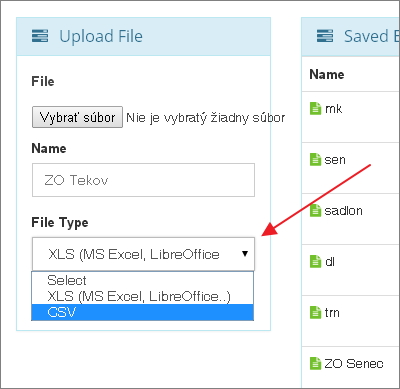
In the top left side of the page there is a panel for uploading new file. Select the file from your Computer, optionally you can type a name or note to this file. Let the file type selected on .xls. Than click "Add" button to upload the file online.
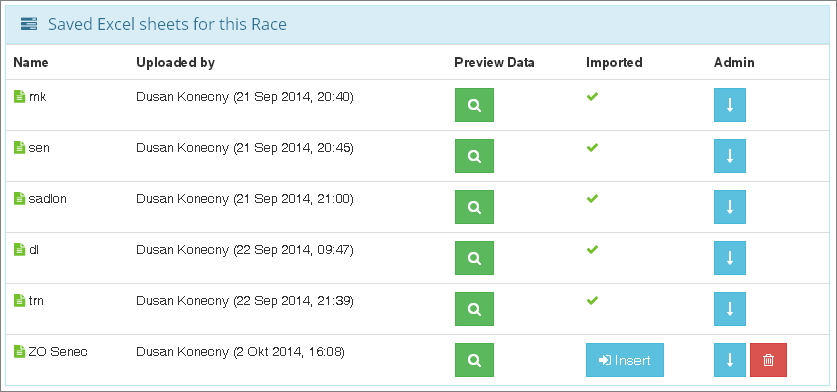
To the right, there is panel with uploaded files
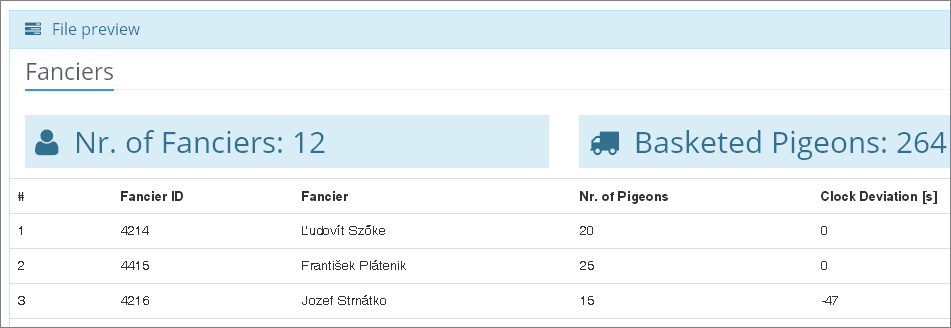
After uploading a file it is possible to view the Data online and check if they can be read and imported. You can view the data by click the green button with magnifier icon in "View Data" Column. After clickng the button, data will show in the bottom part of the page.
In the first table there is list of unique fanciers in the file with their numbers of basketed pigeons and clock deviations. Above the table there is a sum of fanciers and basketed pigeons (for easy check)
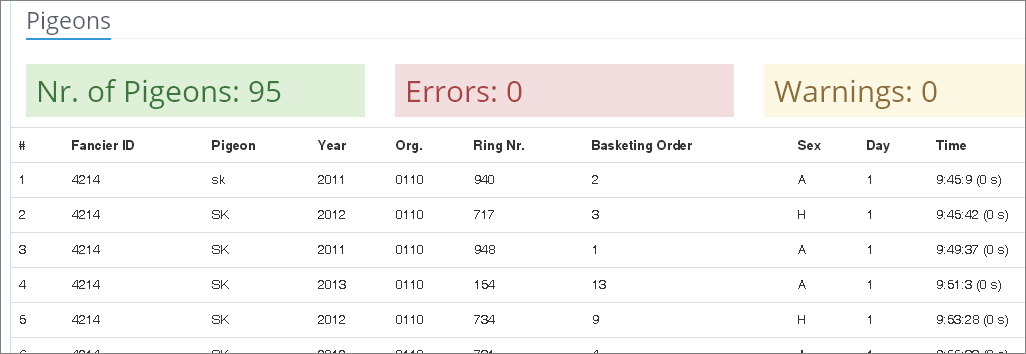
In the second table there is a list of pigeons and their race data from the file. Above the table there is total sum of data lines, number of errors and warnings. Our script reads all the lines from the file with valid number in column for ring number. It is important that it is only a number (as valid data type). Special numbers like Hungarian "D51236" are not supported (nothing but numbers can be here, you can put the "D" as organisation for "DERBY").
Warnings
Lines with warnings can mean that there is suspicion that one or more data columns were not read properly. We stick a warning to year "2000" - if a pigeon is really from 2000 it is OK, but it can also mean that year from ring number was not present or it was not read correctly. Please check for such lines to make sure, data is OK.
Errors
Errors represent lines that are missing some essential data, like nomination, country code etc... These lines will be imported to temporary table but they will need to be corrected before importing to main database
After primary check you can continue with inserting the data to temporary table by clicking on "Insert" button
After inserting the Data, buttons for insert and delete will be deactivated. File stays saved on our server as a backup. Data is inserted to temporary table, ready to by imported to main database.
If you use fancier ID that is not in our fancier database (or is not in the organisation that you are processing the race for) in the xls sheet, you will hit error while trying to insert the data. If there is such a fancier in the file, in the first table (list of fanciers) there will be a red cross icon instead of fancier name. Generally, you should add the fanciers to our database before putting them in xls file. Please delete this file from server, correct the file and upload it again.
If you are pasting data to xls sheet from another source, please make sure that you do not change cell formats. Always paste values only. Otherwise, cell can be misread and data will not be imported correctly.
This part explains options for import of data gathered from ETS electronic outputs or pasting individual fancier data from MS Excel sheets.
Before you can import data for individual fanciers, you need to add them to the race as described in the first part of this manual (with number of basketed pigeons and clock deviation). After adding the fancier to Race, you can access electronic import after clicking on fancier's name on the left panel. There is a shortcut icon in race data panel or you can click the tools menu and choose data import from there.