
Alternative point systems
Override the default per-race scoring with named, reusable point parameter sets - useful for season-long championships that need a single point system across every race regardless of how each race was set up.
- An alternative point system is a named, reusable set of scoring parameters that lives next to your race plan. It does not change anything by itself - it only takes effect when a type of results points to it.
- Think of it as "a second column of point settings": each race in your season can keep its default scoring, and the same race can also have an alternative scoring used by one or more types of results.
- A system can only be deleted while no type of results points to it. If you want to retire a system that is in use, deactivate it instead - existing types keep working, but the system disappears from the dropdown when creating new types.
- Per-race overrides are optional. A race in the season without an alternative score simply falls back to the race-plan defaults when this system is used.
- After changing a system or its per-race scores, recalculate the affected races so the new values take effect.
Why alternative point systems exist
Every race in your race plan is configured with a default scoring - maximum points, point system (drop or linear), point drop, last pigeon percentage, scoring pigeons and maximum nomination. By default, every type of results that includes that race uses those exact numbers. That works perfectly when the whole district agrees on a single scoring system across the season.
Sometimes it does not. A few real-world examples:
- The district uses the step / drop system for its main championship, but a yearling championship inside the same district wants 100 / 99 / 98… linear points across every race.
- A national-level competition wants 1 000 max points with 5 scoring pigeons per fancier, while the district championship on the same races already uses 100 max points with 7 scoring pigeons.
- An ace-pigeon championship wants the same scoring on every race regardless of how each race was set up at the club.
An alternative point system lets you store that second scoring once at the district level, attach it to the race plan (per race), and then point one or more types of results at it. The race itself is untouched - other types of results that use the per-race default keep working unchanged.

Alternative point systems are configured per district, so the access level is the same as for any district-level setting:
- District administrator for the district that owns the system. This is the most common case - the same person who manages the race plan and types of results manages the alternative point systems.
- Country administrator can manage the systems of any district in the country.
If you do not see the Alternative point systems tile in the Smart Club settings, ask your country administrator to grant you the district administrator role first.
Where to find this in MyPigeons
The administration page is reached from the Smart Club settings of the district you administer:
Open Smart Club for your district
Go to the results section of your district for the current season. The Smart Club dashboard is the landing page for district administrators.
Open the Settings panel
The settings page lists all administration tiles for the district - combined results, types of results, race plan, and the Alternative point systems tile.
Click the Alternative point systems tile
This opens the two-pane editor: the list of existing systems on the left, and the per-race scores for the selected system on the right.

Smart Club settings — the Alternative Point Systems tile sits next to Types of Results.
Anatomy of an alternative point system
Every system has two layers, and it helps to keep them apart in your head when reading the rest of this guide:
The system itself
A small record at district level with three things on it:
- Name - what fanciers and other administrators see in the type-of-results dropdown. Keep it short and descriptive: Yearling championship, FCI national, Pythia 2026.
- Description - optional internal note, only visible inside this administration page. Use it to remind yourself what this system is for ("All races, 100/20 linear, 7 scoring pigeons").
- Active flag - controls whether the system is offered to new types of results. Inactive systems keep working for types that already use them.
Per-race scores
Inside the system you can store one optional override per race in the season. Every override carries the full set of point parameters used by the calculator:
- Point system - Drop or Linear - decides which formula will be used for this race when this system is picked.
- Max points - the highest possible point value (typical:
100,200,1 000). - Scoring pigeons - how many pigeons per fancier accumulate score in this race.
- Maximum nomination - the cap on the nomination column for points to be awarded.
- Drop system only: Point dropdown (how many points each band loses) and Percentual dropdown (the band width as a percentage of the field).
- Linear system only: Last pigeon % - the floor expressed as a percentage of Max points.
If a race in the season has no per-race override stored on this system, the calculator uses the race’s own default scoring whenever a type of results that points to this system runs. So you are free to override only the races that need it - the rest fall back automatically.

Creating a new system
Type a name in the bottom of the systems list
The list on the left has an inline input below it ("New system name"). Type the name and press Enter or click the + button. The system is created immediately as Active.

Inline create input — one field, press Enter or click the plus. Add a description (optional)
Click the pencil icon next to the system to open the edit modal, then add a short note in the description field. The description is shown in the system list as a muted hint, so future-you (or the next administrator) knows what this system was for.

Edit system — rename or add a description. The active toggle is the eye icon back in the list. Open the system to set per-race scores
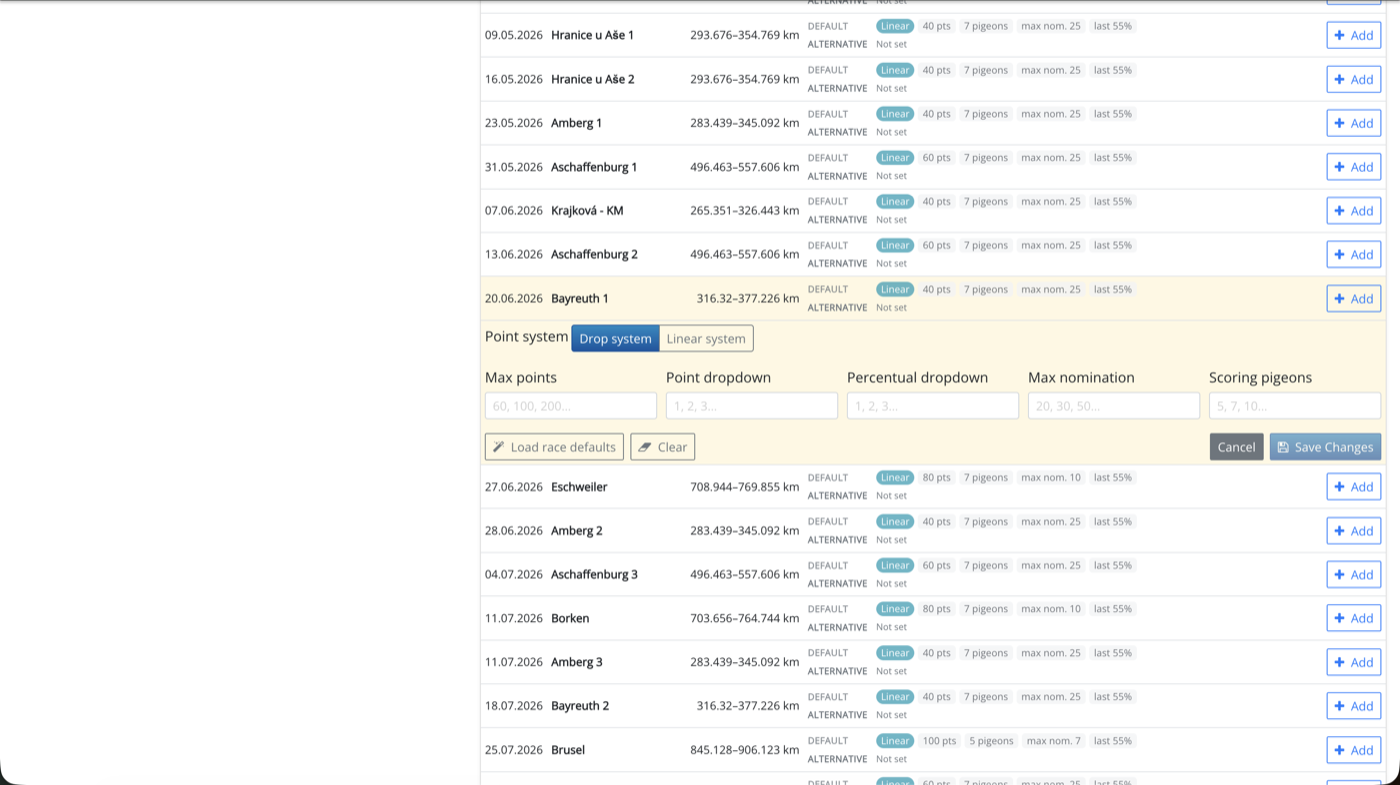
Click the system name (or anywhere on its row) to open it on the right side. The right pane lists every race in the current season with two scoring badges per race - Default (what the race itself is configured with) and Alternative (what this system overrides, if any).
Setting per-race scores
Each row in the right pane is one race. The two badge lines tell you everything at a glance:
- DEFAULT line shows the point system stamped on the race itself, plus the values from the race plan ("100 pts", "7 pigeons", "max nom. 20", "last 55 %"…).
- ALTERNATIVE line shows what this system will use for this race. Not set means there is no override and the calculator falls back to the race default.

Adding a score
Click Add on the race row
The row expands into an inline form below it, highlighted yellow so it is clear which race you are editing.
Pick the point system
Switch between Drop system and Linear system at the top of the form. The fields below adapt to your choice:
- Drop shows 5 fields: max points, point dropdown, percentual dropdown, max nomination, scoring pigeons.
- Linear shows 4 fields: max points, last pigeon %, max nomination, scoring pigeons.
Pre-fill from the race default (optional)
The Load race defaults button copies whatever the race has stamped on it into the form. From there you only need to change the values that differ - useful when only one number changes (for example the same scoring everywhere, but with a different max nomination per race).
Save changes
Click Save changes. The row closes, the alternative line updates immediately, and the green tint on the row tells you the race now has an override.
Reuse the previous values
When you add scores to several races in a row, the form remembers the last values you saved. Open a fresh race row and the fields are already pre-filled - typically you only adjust max nomination or scoring pigeons and save.
Editing or removing a score
Once a race has an alternative score, the row shows a small pencil and a small trash icon instead of the Add button:
- Pencil reopens the inline form with the existing values - change anything and save.
- Trash removes the override (after a confirmation dialog). The row falls back to the race defaults the next time the type of results is calculated.
Both actions are scoped to this system only. Other systems that point to the same race are not touched.
Connecting a system to a type of results
An alternative point system on its own does nothing - it has to be picked by a type of results. The connection is made on the type-of-results form:
- Open Types of results from the same Smart Club settings page.
- Either create a new type or edit an existing one.
- In the Points panel, find the Alternative point system dropdown. By default it is set to Default point system for each race - leave it there if you want the per-race scoring as configured in the race plan. To switch, pick your system from the list.
- Save the type of results.
- Recalculate the races so the new scoring takes effect.
Only active systems show up in the dropdown. Inactive ones are hidden but remain bound to types that already use them.
Active and inactive systems
The eye / eye-slash icon next to each system toggles the active flag without opening the modal. The list pill on each row shows the current state - "On" for active, "Off" for inactive.
- Active - the system appears in the type-of-results dropdown when an administrator creates or edits a type. This is the default state for new systems.
- Inactive - the system is hidden from the dropdown but still works for any type of results that already references it. Use this to retire a system at the end of the season without breaking previously calculated results.
The list filter at the top ("All" / "Active only") lets you quickly hide the historical systems while you are configuring this season's championships.

"Used in" protection
If a system is referenced by one or more types of results, the editor shows a small "Used in" line in the header of the right pane, listing every type that points to it. The list also disables the trash icon on the row so the system cannot be deleted by accident.

How to delete a system that is in use
You have two options. Option A: open every type listed under "Used in" and switch the Alternative point system dropdown back to Default point system for each race (or to a different system). Once no type points to this one any more, the trash icon unlocks. Option B: delete those types of results first - but only if you do not need their existing calculated results any more, because deleting a type of results also deletes its results.
Don’t forget to recalculate
Editing the system or its per-race scores updates the configuration, but the existing calculated results are not refreshed automatically. You have to:
- Open each affected race in the race plan.
- Recalculate it (or use the bulk recalculation in the season toolbar).
Until you recalculate, the public results page still shows the old point column. This is a frequent stumble for new administrators - the system looks "broken" because the change does not appear, but the recalculation step was skipped.
Things to watch for
- One system, many races, partial overrides. A system does not need a score for every race. Only the races that should differ from the race-plan default need an entry - the rest fall back automatically.
- Two scoring layers can confuse fanciers. If a race shows a different total in the championship than the per-race results page, the type of results behind the championship is probably using an alternative point system. Mention which point system the championship uses in the type's Description.
- Drop vs Linear is per-race, not per-system. A single system can use Drop for a flat-distance race and Linear for a long-distance race. Pick the formula that matches the race.
- Inactive does not mean broken. Toggling Off only hides the system from the dropdown for new types. Existing types continue to use it - which is exactly what you want when retiring a championship at the end of the season.
- Numbers, not text. All five fields are numeric. Last pigeon % is a percentage value (typical 20 - 60), not a fraction. Maximum nomination follows the same convention as on the race itself -
0or empty does not mean "no cap"; use the same value the federation uses on the race.